
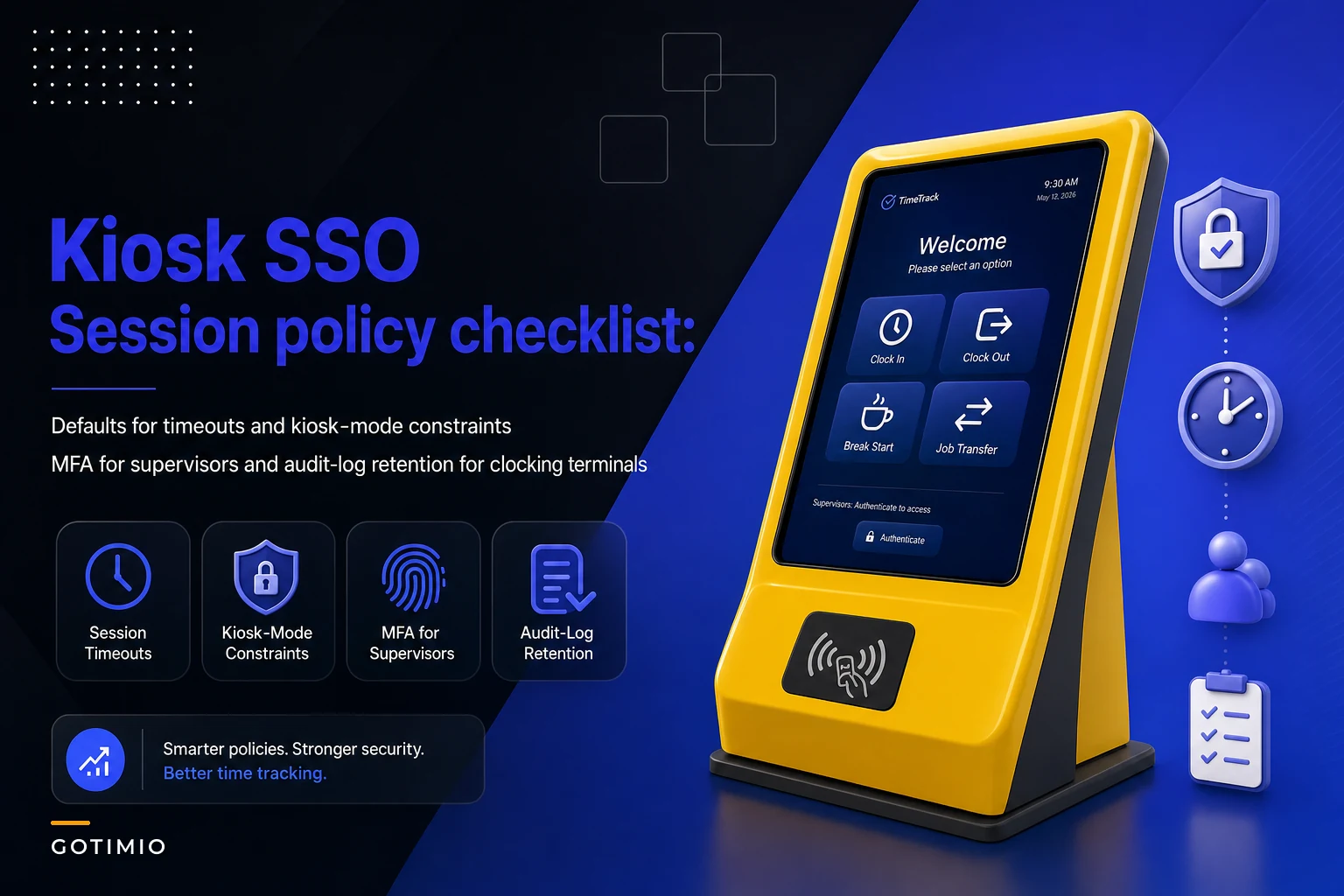

A wall-mounted tablet by the warehouse door looks harmless. It's running a single clocking app, bolted to a cheap enclosure, and forty people tap it twice a day. Nobody treats it like a security endpoint. But that terminal usually inherits the same SSO session policy as a payroll admin's laptop — and that mismatch is where most of the real problems start.
This isn't a general security post. It's about four configuration settings that behave completely differently on a shared kiosk than they do on a personal device: SSO session timeout, kiosk-mode lockdown, MFA for supervisors, and audit-log retention. Get these wrong and you either lock out your floor staff or leave a session wide open for the next person who walks up.
We'll go setting by setting, with the defaults that actually work on a clocking terminal — not the ones your IdP ships with.
Why kiosk SSO behaves nothing like laptop SSO
On a personal laptop, a long SSO session is a feature. You log in Monday, stay authenticated most of the week, and life is good. The device belongs to one person, so "stay signed in" is low risk.
A clocking terminal flips every assumption. The device is shared, the physical location is semi-public, and the "user" changes every 15 seconds during a shift change. If you run the same 8-hour or rolling SSO session you'd give a laptop, the first person who authenticates in the morning effectively holds the session open — and everyone after them taps their badge against an already-authenticated app. The identity on the punch and the identity of the session drift apart.
A pattern that shows up constantly: the kiosk runs a service account or shared device identity for the SSO layer, and individual employees authenticate inside the app with a PIN or badge. That's actually the correct model — but only if the SSO session for the device account and the in-app employee session are configured as two separate things with two separate timeouts. When teams forget that distinction, they set one timeout for both and end up with either constant re-logins or stale sessions that nobody notices until there's a dispute.
The mental model that works:
-
Device/app session (SSO) long-lived, tied to the kiosk itself, re-validated periodically against your IdP
-
Employee session (in-app) extremely short-lived, collapses to nothing right after the punch is captured
Keep those separated and most of the headaches disappear.
Setting 1 — Session timeout defaults that match a shift floor
The number you want isn't one number. It's two.
Accurate time tracking made effortless.
GoTimio empowers your team to log, monitor, and manage work hours seamlessly.
- Real-time time tracking
- Automated timesheet approvals
- Payroll and billing integration
No credit card required
For the in-app employee session, the correct behavior is near-instant collapse. After an employee punches, the screen should return to a neutral "tap to clock" state within a few seconds — not keep their profile loaded. A terminal that leaves someone's name, accrued PTO balance, or schedule visible for 30 seconds after they walk away is leaking data to the next person in line.
For the device SSO session, you want it long enough that a tablet doesn't drop auth mid-shift, but short enough that an unplugged, stolen, or relocated terminal stops working quickly. A practical range that holds up on real floors:
| Session layer | Typical bad default | What works on a kiosk | Why |
|---|---|---|---|
| In-app employee session | 15–30 min idle | 5–10 sec after punch | Prevents next person seeing prior profile |
| Device SSO session | 8 hr rolling / "remember me" | 12–16 hr fixed, hard expiry | Covers a full shift, dies overnight |
| Supervisor elevated session | Same as employee | 2–5 min, then re-auth | Limits exposure during edits |
| Re-validation ping to IdP | None | Every 30–60 min | Catches revoked device access fast |
The detail most people miss: use a fixed (absolute) expiry on the device session, not a rolling one. Rolling expiry resets every time someone touches the screen — which on a busy kiosk means it never expires. A fixed 14-hour window guarantees the terminal re-authenticates against your IdP overnight, so a device you deactivated at 6pm can't still be punching people in at 7am.
A simple workflow of device and employee session interactions.
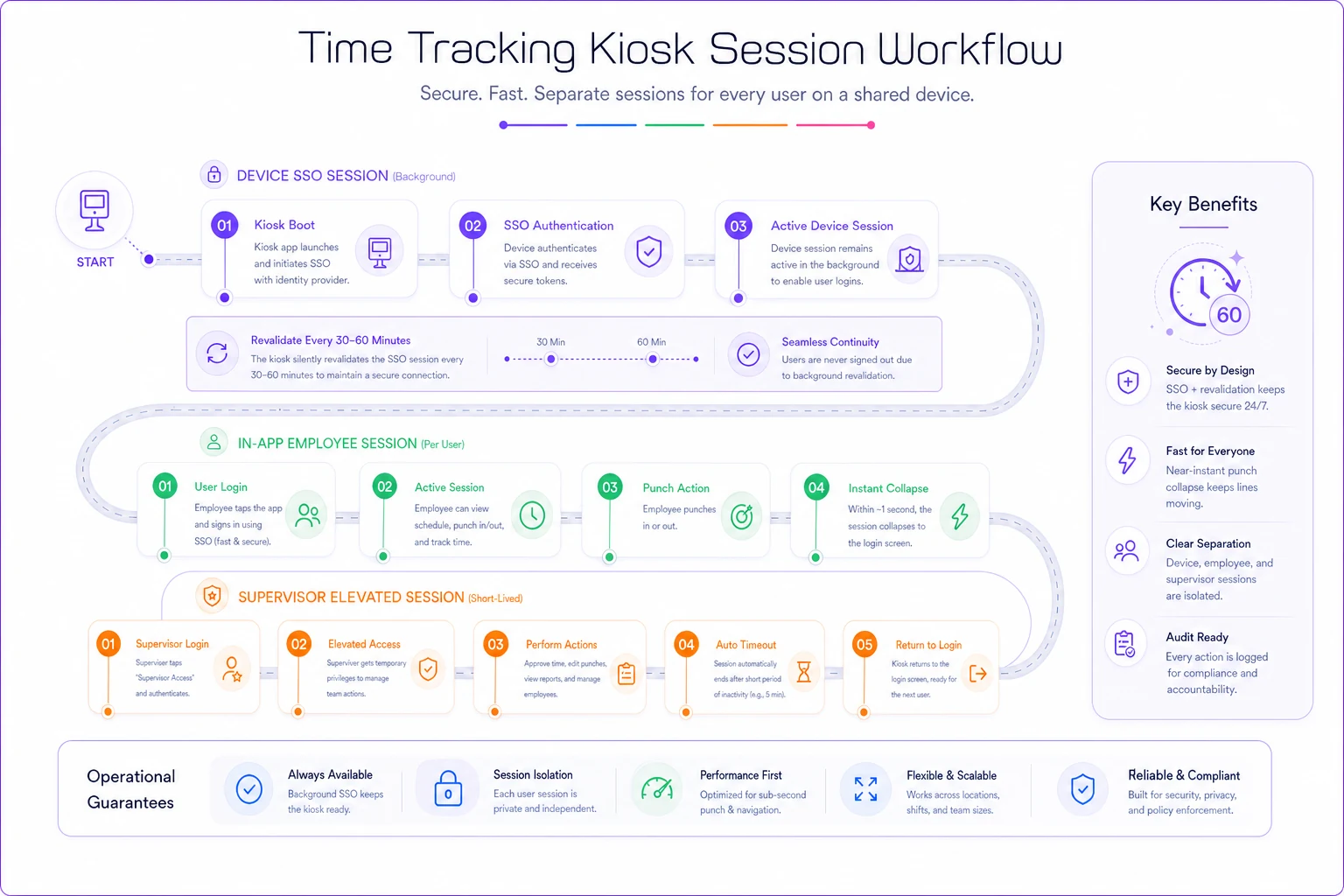
This visual summarizes the session separation and timing.
Setting 2 — Kiosk-mode constraints people forget to lock down
Kiosk mode is supposed to mean "this device does one thing." In practice, a surprising number of clocking tablets are one swipe away from a full browser, the settings menu, or another app entirely.
The failure usually looks mundane. Someone needs to check a schedule, exits the clocking app, and now the tablet is just an Android or iPad sitting unlocked in a hallway. Next person opens the browser. Or worse — opens the clocking app's admin URL, which was never meant to be reachable from the floor.
-
Single-app pinning enabled (Guided Access on iPad, pinned/kiosk mode on Android/ChromeOS, assigned-access on Windows)
-
Home button, app switcher, and gestures disabled so staff can't background the app
-
Browser and app store fully blocked, not just hidden
-
Admin/config URL unreachable from the device network segment — admin functions should live on a separate interface entirely
-
USB and sideloading disabled so nobody plugs in a keyboard to escape kiosk mode
-
Auto-relaunch on crash so the clocking app reopens if it dies, instead of dropping to the OS
-
MDM enrollment so a lost terminal can be wiped and de-authenticated remotely
-
No local caching of credentials beyond the device session token
Block the admin URL at the network level so it's unreachable from the kiosk network segment.
The one that bites people most is the admin URL. A kiosk should be able to capture punches and almost nothing else. All the sensitive operations — editing records, viewing reports, changing rates — belong behind a separate access path on a controlled device. This is fundamentally a separation-of-duties question, and it maps directly to the role boundaries covered in the policy-to-configuration RBAC blueprint for timekeeping systems. The kiosk gets the "capture" role and nothing more.
Setting 3 — MFA for supervisors (without MFA for every punch)
This is where most teams freeze. Security says "MFA everything." Operations says "I am not making a line cook do a push notification twice a shift." Both are right, which means the policy has to be split by action, not by person.
The principle: punching needs identity, not MFA. Supervisory actions need MFA.
A regular clock-in is low-risk and high-frequency. Forcing MFA there just trains people to tap "approve" without reading anything, which kills the value of MFA anyway. A badge or PIN is fine for a punch — the audit trail and downstream reconciliation catch anomalies.
Supervisory actions are the opposite: low-frequency, high-impact. When a supervisor walks up to approve a missed punch, edit a time record, or override an exception, that's where you want a second factor. Those are the actions that move money.
-
Employee taps badge/PIN → punch captured → screen clears in seconds. No MFA.
-
Supervisor needs to edit or approve → selects supervisor mode → prompted for second factor.
-
Supervisor completes MFA → short elevated session opens (2–5 min).
-
Edit is made, logged with the supervisor's identity and the MFA event.
-
Elevated session auto-collapses back to employee punch mode.
The subtle mistake here is letting the supervisor's elevated session outlive the task. If a manager authenticates, makes one edit, and walks away, that terminal should not still be in "supervisor can edit anything" mode when the next person taps it. The 2–5 minute elevated timeout exists precisely for that walk-away moment. Tie the second factor to a hardware token or authenticator app rather than SMS — floor environments are exactly where phones are in lockers or pockets, and SMS on a shared-WiFi terminal is the least reliable option.
The encryption and privileged-account side of this — how supervisor credentials and session tokens are stored and monitored — gets deeper treatment in the timesheet security checklist covering encryption, key rotation, and privileged-account monitoring. The kiosk config is the front door; that's the plumbing behind it.
Setting 4 — Audit-log retention tailored to a terminal
Audit logs from a clocking terminal are different from application-level logs, and they get configured wrong because people treat them as one bucket.
A terminal generates two very different log streams:
-
Punch events — who clocked in/out, when, from which device. These feed payroll and are business records.
-
Device/security events — kiosk mode exits, failed SSO re-validations, supervisor MFA attempts, elevated session grants, config access attempts.
These need different retention. Punch events follow your payroll and wage-and-hour retention requirements (often multiple years). Device security events are shorter-lived operationally but critically important in the first 90 days — that's when you're investigating a "someone was clocked in but wasn't here" dispute or a terminal that got tampered with.
| Log type | Retention target | Primary use |
|---|---|---|
| Punch/attendance events | Match payroll statute (2–4 yr typical) | Wage disputes, payroll proof |
| Supervisor edits + MFA events | Same as punch events | Defensible proof of who changed what |
| Kiosk-mode / session security events | 90–180 days hot, then archive | Incident investigation |
| Failed auth / device de-auth events | 1 yr minimum | Spotting tampering patterns |
The mistake worth calling out: logging the punch but not logging the session context around it. When a dispute lands — "this punch wasn't me" — you need to tie the punch to the device session, the location, and whether a supervisor override touched it. If your terminal only stores "clock-in at 7:02am, employee 4471" with no session or device metadata, you can't actually defend it. Make sure the punch log carries the device ID, session ID, and whether MFA elevation was active at the time.
A real scenario
A mid-sized facilities company ran clocking tablets at six sites, around 120 field and janitorial staff total. The tablets were configured once by an IT contractor who applied the company's standard laptop SSO policy: rolling 8-hour sessions, no kiosk pinning, supervisors using the same PIN access as everyone else.
The problems showed up quietly. Because the SSO session rolled every time someone tapped the screen, the morning login from the opening supervisor kept the device authenticated as their identity all day. A handful of punches ended up logged under the wrong session context. Separately, because there was no app pinning, staff at two sites had figured out they could exit the app and use the tablet's browser during breaks — one tablet got locked up with a sketchy download.
The fix wasn't complicated. They split the session model: a fixed 14-hour device session with overnight hard expiry, and a near-instant in-app session collapse after each punch. They enabled single-app pinning and killed the browser. Supervisor edits got moved behind an authenticator-app second factor with a 3-minute elevated window. Audit retention was split so security events stayed hot for about six months while punch records matched the state's wage retention rule.
The payoff was mostly in disputes that stopped happening. Over the following quarter, "that punch wasn't me" tickets dropped from a handful a month to nearly none, because every punch now carried clean device and session metadata. Two near-miss incidents involving a misplaced tablet at one site were resolved by remote de-auth in minutes. Nothing dramatic — just a floor that stopped generating quiet, expensive ambiguity.
When tight kiosk policy is overkill
Not every environment needs the full treatment, and over-locking a low-risk setup just creates unnecessary friction.
-
A 5-person office with one shared terminal everyone can see all day probably doesn't need MFA-gated supervisor sessions — the physical oversight already covers it. Basic in-app timeout and pinning is enough.
-
Terminals in genuinely locked, badge-access-only rooms can run slightly longer device sessions, since physical access is already controlled.
-
Temporary or seasonal terminals that exist for a week don't need the full retention architecture — but they do still need pinning and short in-app sessions, because those protect the person next in line, not long-term records.
Where the full checklist earns its keep is any floor that's semi-public, high-turnover, or multi-site — warehouses, hospitality, healthcare, facilities, retail stockrooms. Those are the environments where the device is shared, the location is exposed, and a mislabeled punch compounds across a lot of people.
The short version
Treat a clocking terminal as its own class of endpoint, not a locked-down laptop. The four settings that matter:
-
Two session layers — long fixed device session, near-instant in-app session collapse.
-
Real kiosk lockdown — single-app pinning, no browser, admin URL unreachable from the floor.
-
MFA for supervisor actions only — punches stay frictionless, edits require a second factor and a short elevated window.
-
Split audit retention — punch records match payroll statute, security events stay hot for incident windows, and every punch carries session and device context.
The defaults your identity provider ships for personal devices are the exact wrong defaults for a shared terminal. A couple of hours spent splitting sessions and pinning the app saves you from the slow, invisible drift between who's authenticated and who's actually standing at the screen — which is where almost every kiosk dispute and security incident eventually traces back to.
The defaults your identity provider ships for personal devices are the exact wrong defaults for a shared terminal. A couple of hours spent splitting sessions and pinning the app saves you from the slow, invisible drift between who's authenticated and who's actually standing at the screen — which is where almost every kiosk dispute and security incident eventually traces back to.
Ready to optimize your workforce time management?
Join 2,000+ companies using GoTimio to improve timesheet accuracy, reduce payroll errors, and boost team productivity.